
iPad teleprompter app: three ways to use an iPad as a teleprompter, and what to check first
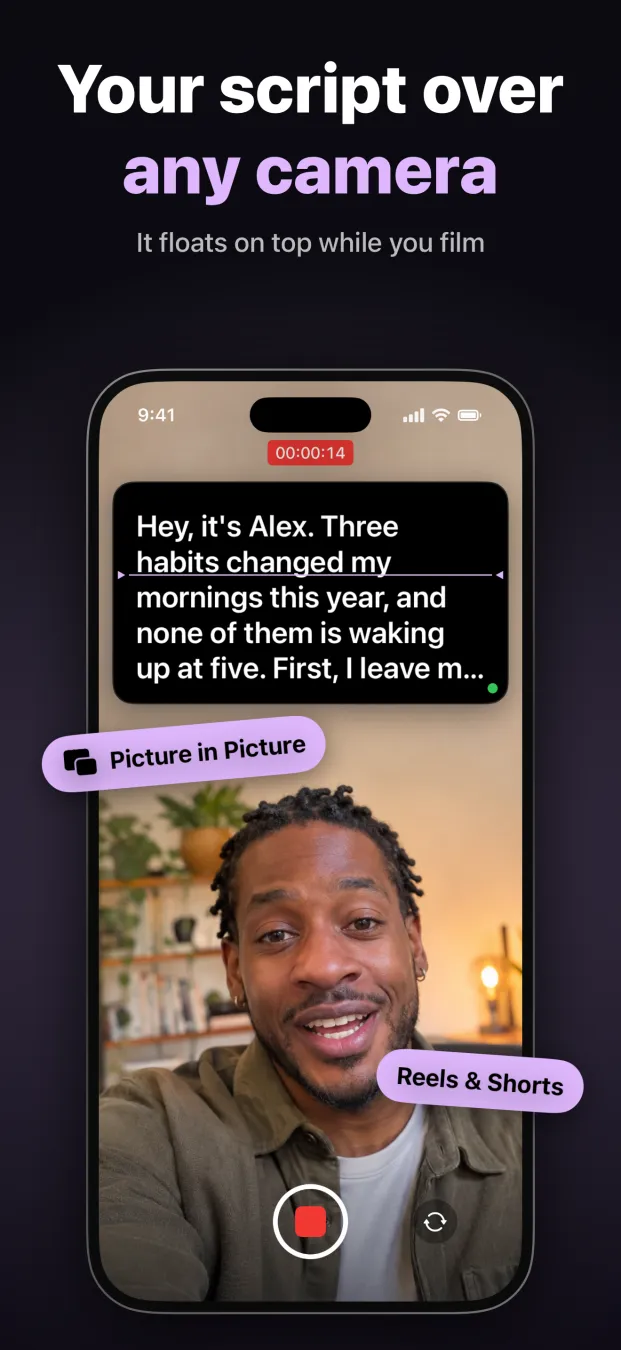
An iPad works as a teleprompter in three setups: the script under its own front camera while the app records, a floating window over Zoom, FaceTime or the Camera app, or the screen in a beam-splitter rig. Teleprompter PiP covers all three on iPad. What it lacks is a remote.
Most iPad teleprompter apps are iPhone apps on a bigger screen, and for reading that is fine: more words per line, larger font, less scrolling. The differences that matter are elsewhere: where the camera sits, whether the script can float over another app, and how you start and stop it from a distance.
The three iPad setups
| Setup | Camera that records | Good for | Watch out for |
|---|---|---|---|
| 1. Recorder app on the iPad | The iPad's front camera | Talking-head videos, lessons, one device and nothing else | The iPad front camera is usually weaker than a recent iPhone's, so light the room well |
| 2. Floating script over another app | Whatever app is in front: Camera, Zoom, FaceTime | Calls, webinars, recording in the app you'll post from | The window is small; on a call the microphone belongs to the call app |
| 3. iPad as the prompter screen | A separate camera or iPhone | Back-camera quality, perfect eye contact with a rig | You need mirror mode, and a remote helps a lot |
Find your front camera before anything else
Teleprompter text works only when it sits right next to the lens. On an iPad the front camera is on the long edge on some models and on the short edge on others, so look at yours first and hold the iPad with that edge at the top: landscape if the camera is on the long edge, portrait if it is on the short one. Then shrink the text to a band under the camera and raise the font size. A full-screen script on a 13-inch iPad makes your eyes travel a long way, and on video that reads as reading.
Teleprompter PiP's prompter turns with the iPad in every orientation, upside-down portrait included, so you can turn the camera edge to the top whichever model you have.
Setup 1: record on the iPad with the script under the camera
Open a script and tap the camera button in the prompter's bottom bar. The first tap turns on the front camera, the second switches to the back one, the third turns the camera off. With the camera on, the play button becomes a record button: one tap starts recording and scrolling together, in portrait or landscape. The clip goes to Photos. Resolution, HDR, frame rate and lens are under Settings → Camera, the same options as on iPhone; the recording guide lists them.
Setup 2: a floating script over Zoom, FaceTime or the Camera app
This is where iPad apps differ most. Teleprompter (Teleprompter Apps Ltd) says in its App Store description that it can be used during Zoom or Google Meet calls, and that on iPad it supports Slide Over and Split View: in Split View the screen is divided and the prompter takes part of it. Prompt+ from Norton Five works in Zoom the same way, on iPad only, in Split View.
Teleprompter PiP uses the system Picture-in-Picture window instead. Tap the Picture in Picture button in the prompter's bottom bar and the script becomes a small video window that stays on top of the Camera app, Zoom or FaceTime. The call or camera keeps the whole screen; you drag the window up next to the front camera. On a call the call app holds the microphone, so the window scrolls at a steady pace rather than following your voice; the call guide explains the setup.
Setup 3: the iPad as the screen for another camera
An iPad has the biggest screen you can easily put under the glass of a beam-splitter rig, and many rigs are made to hold a tablet. The rig needs mirror mode: in Teleprompter PiP it is a per-script setting (None, Flip H, Flip V, Both) under the sliders button, free on all plans. For most rigs Flip H is the right one. Turn the screen brightness up, because the glass reflects only part of the light.
Without a rig, stand the iPad right behind the recording iPhone or camera, as close to the lens line as the stand allows. Your eyes will be slightly off the lens, which is fine for most talking-head videos.
Voice scroll helps a lot here: the script follows what you say and waits when you pause, so you don't have to walk over to the iPad to slow it down.
What Teleprompter PiP doesn't do on iPad
- No remote. There is no remote from another device, no Bluetooth remote, keyboard or foot-pedal control. You start and pause on the iPad itself, or let voice scroll set the pace.
- No sync between iPhone and iPad. Scripts stay on the device where you wrote them, with no account. Write on the iPad, or paste the text over.
If a remote matters for your setup, these apps list one on their App Store pages or websites (read on 2026-11-13):
| App | Remote and control | Plan |
|---|---|---|
| Teleprompter (Teleprompter Apps Ltd) | Web-browser remote, Bluetooth remote, keyboard and controllers, Apple Watch | Pro ($59.99/year or $159.99 one-time) |
| Teleprompter.com | Remote from another device, Apple Watch, MIDI, foot pedals | Remote control is listed in the free Starter plan; Pro from $89.99/year |
| Teleprompter for Video (Norton Five) | Bluetooth remote, foot pedal, Apple Watch | Not stated on the App Store page |
| PromptSmart Pro | Remote control | Extended subscription on top of the $29.99 app, or a separate in-app purchase |
Questions
Is there a free teleprompter app for iPad?
Yes, several, but each one stops being free at a different point. Teleprompter by Teleprompter Apps Ltd gives unlimited scripts and recording for free and puts mirroring and remote control in Pro. Teleprompter PiP gives three scripts with every feature, including the floating window, voice scroll and mirror mode. Check the In-App Purchases list on the App Store page for the feature you need.
Can I use an iPad as the teleprompter screen for an iPhone camera?
Yes. Put the iPad right behind or just above the recording iPhone, or under the glass of a beam-splitter rig with mirror mode on, and run any teleprompter app on it. If you want to start and pause the iPad from the iPhone, you need an app with a remote from another device; Teleprompter PiP doesn't have one.
Does a floating teleprompter work on iPad?
It does if the app uses the system Picture-in-Picture window. Teleprompter PiP's window floats over the Camera app, Zoom and FaceTime on iPad the same way it does on iPhone. Apps that only support Split View share the screen with the other app instead of floating over it.
Which way should I hold the iPad?
So that the front camera is on top. Depending on the model it sits on the long edge or the short edge, so check yours, turn the iPad to put that edge at the top, and keep the text in a narrow band right under it.
What Teleprompter PiP does here
On iPad it records with the script over its own camera, floats the script over the Camera app, Zoom or FaceTime as a Picture-in-Picture window, flips the text for a beam-splitter rig, and scrolls at a fixed pace, on a timer or by your voice. iOS 17 or later; 3 scripts free with every feature; Pro gives unlimited scripts and lets you edit and delete any of them.